
Showing posts with label Logo. Show all posts
Showing posts with label Logo. Show all posts
Monday, July 27, 2020
Generative Art with TurtleArt
I made a series of drawings with the LogoTurtle a while back and I am revisiting the same idea of "exploded shapes" using Turtle Art. With this simple idea:


Thursday, June 14, 2018
LightLogo Kaleidoscope Project
I am pleased to offer instructions and material files for making a LightLogo Kaleidoscope! I have been thinking about doing this for many months and finally worked out a design. If you have any improvements on this design please do share!
Saturday, January 13, 2018
Write an Arc Function With Processing Turtle Library
Blocks based Logo environments that have an arc block, such as TurtleArt, allow you to input the angle of the arc you want to draw, as well as the radius of the circle it is on.
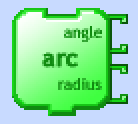
There isn't an arc function in Leah Beuchley's Processing Turtle library. A great challenge is to write your own arc function, and I think high school students would have a great time with this, too. I'm going to break down this problem step by step.
There isn't an arc function in Leah Beuchley's Processing Turtle library. A great challenge is to write your own arc function, and I think high school students would have a great time with this, too. I'm going to break down this problem step by step.
Wednesday, July 19, 2017
Strobing Zoetrope v2, Now With Logo!

This project started during my participation in Design Do Discover 2017. At the end of my post about it I said I wanted to try making it work with a mashup of LightLogo and LogoTurtle and now I have! In this phase of making a zoetrope with a spinning disk of animation frames and a strobing light source, the project has gotten several upgrades:
Tuesday, June 27, 2017
Light Play With LightLogo
 I've been admiring the work the Tinkerers at The Exploratorium have been doing with light. They've developed an amazing and rich environment for creating moving light and shadow compositions in which fading lights of different colors cast shadows of objects arranged on a slowly rotating turntable. The displays of moving and overlapping shapes on the white scrim are mesmerizing.
 Sunday, October 02, 2016
Sharing the LogoTurtle at World Maker Faire

- A 10 year-old boy who had never programmed in Logo saw the square example and immediately saw how he could modify it to make different shapes and nest that loop in another loop to make the multiple tiled shapes on the left. His dad was floored by what he did so quickly on his own. He left with his family for a while and came back a couple hours later and added to his octagon program to make the shape in the video. Amazing, he had been thinking about it while walking around and wanted to pursue his other ideas about it.
Tuesday, September 13, 2016
Learning From the LogoTurtle
Teaching with the LogoTurtle was an experiment for me last spring. I knew there would be a lot for my high school robotics students to learn from it but I didn't exactly know what. At the end of our LogoTurtle unit I asked the students to write about what they felt like they learned. I didn't prompt them to write about any specific aspect of their learning, I just wanted to see what would come out. I've been thinking about what they wrote and realized a few things; 1) each student is on her own learning adventure, 2) the LogoTurtle is actually teaching them as much as, and maybe more than, I am, and 3) what are often called the soft skills of learning-resilience, collaboration, making mistakes, perseverance-were a significant part of the experience for them.
Wednesday, August 17, 2016


Monday, January 25, 2016
Generative Art with the LogoTurtle
 The LogoTurtle is a programmable turtle that can draw. I like running simple programs with small aspects of randomness because the resulting drawings are always a surprise, and often beautiful. When randomness is part of a program the robot will draw a different composition every time, but it's also fun to look at several drawings resulting from the same program and see the similarities. The robot is enacting controlled chaos, and both the controlled parameters and the chaos within those limits can be seen after several runs. I also like how the robot is a kind of partner in creativity as it makes its own decisions within the framework it's been given.
Tuesday, July 28, 2015
How To Get From Blocks to Text With Robotics Coding


So many rich block-based programming environments have become available during the last several years. The release of Scratch into the world by MIT Media Lab's Lifelong Kindergarten Group catalyzed the invention of similar block-based environments for all sorts of purposes and a revolution in novice learners' ability to use the building blocks of computer science to imagine and make things. Block-based environments provide the important affordance of building programs without making
Thursday, April 01, 2010
Reading Papert's "Mindstorms"
I'm finally reading Seymour Papert's Mindstorms from the early 90's. The two main ideas throughout the book are: "It is possible to design computers so that learning to communicate with them can be a natural process," and "Learning to communicate with a computer may change the way other learning takes place." These two ideas have been so ingrained in my thinking since I started teaching with technology I can't wait to see how he talks about them in the book.
Saturday, August 09, 2008
The Logo Blog
I post so much lately about Logo I figured I'd start a blog just about that. So it's The Logo Blog at logoandlearning.blogspot.com.
Wednesday, May 14, 2008
Fun With the Super Cricket
Learned a lot of stuff today testing components of the Super Cricket:
- The difference between the photocell sensor and the infrared sensor is the former detects levels of ambient light while the latter is affected by light values reflected back to it. The photocell sensor would therefore be good for triggering processes in reaction to the room lights being turned on or off, while the ir sensor would be a good line follower or for triggering a sorting system. It's cool to see them at work using a little program to output their values to an LED bus and watch them change as you move them around:
to get-light
display sensora
wait 10
get-light
end
- I also figured out how to store values and upload them to a text file. Here's the program:
to rec-data
resetdp
repeat 10
[display sensora
record sensora
wait 10]
end
- Once the data's recorded, uploading it is easy in Cricket Logo. Just click Cricket>Upload data, and in a few clicks you can upload it and save it as a text file that's easy to import into Excel.
- It's really fun to play with the LED bus. After downloading a procedure that prepares it to receive the LED assignments, you can download any letters you want. Here's the prepping procedure:
to display-bits :d1 :d2 :d3 :d4
bsend $110
bsend 64
bsend low-byte :d1
bsend low-byte :d2
bsend low-byte :d3
bsend low-byte :d4
end
- The values for :d1 :d2 :d3 :d4 have to be in hexadecimal format and they give a couple examples, such as that 'A' is $77. I had no idea how I was going to figure out what value each letter of the alphabet was, but my colleague wouldn't rest until he figured it out and he found this list someone at UMass had compiled. I'd like to know how they figured it out, brute force or programming. So my name is display-bits $7b $50 $30 $76.
- After a little email correspondence with the fine folks (maybe just folk) at Gleason Research, I also learned that I can make our RCX temperature sensors work with the Cricket with a little hacking. They sell a 9V motor adapter, which connects the RCX lead to a motor plug on the cricket. So I thought maybe I could put sensor plugs on the 9V motor adapter instead (the only difference is the motor plug has two holes and the sensor plug has three.) and connect it to the temperature sensor lead. Apparently it will work but the values it returned have to be converted to real temperature values. To achieve this you have to find the values returned for some known temperatures, and in the words of Fred, "do a curve fit in Excel." I'll be talking to a math teacher to figure out how to translate that into a conversion formula. But it's great that we'll be able to use all these temperature sensors we have rather than buy new ones made for the cricket.
Saturday, April 05, 2008
I love the Super Cricket
I just got two Super Crickets. They were tricky to get working as far as the drivers and program configs, but they are so fun. To get everything you need for a PC running XP here is the list of stuff to get:
- Buy the Super Crickets from Gleason Research. It's nice to have the USB-ir interface rather then using the default serial interface.
- Download the Logo-based software to program them, either Cricket Logo or Logo Blocks. The former is a text interface and the latter is interlocking blocks with code on them that force you into creating proper syntax. Another option, actually the one I prefer, is Jackal, which uses the same version of Logo as Cricket Logo but it color-codes your program syntax, plus it has some nice skins. The only drawback to Jackal is it doesn't allow you to upload data from the cricket like Cricket Logo does. I don't know if Logo Blocks can do that.
- If you use Cricket Logo, go down to the bottom of the first link at Gleason Research and download the Super Cricket libraries, or special files that allow the software to recognize the Super Cricket. It tells you where to put them. The software was originally designed for the smaller Handy Cricket and the (relatively) new library files haven't been integrated yet.
- For all three programs, if you get the USB-ir interface you will need a special driver from FTDI that creates a virtual COM port. You save it to a location of your choosing and tell Windows where it is when you plug in the ir transmitter. The software only knows how to interface through serial connections, so this tricks it into thinking it's using a serial connection when it's connecting through USB.
- If you are using Jackal, you will want to set the default COM port for the program by going to the default settings txt file in the Jackal program folder and changing it to COM4. At least that's the virtual port that appeared on my computer.
- For programming help with Cricket Logo (and Jackal), go to the Handy Cricket Programming Reference page. It's really clear. I'm sure there are also good websites for help with Logo Blocks programming. I haven't looked hard, though.
Wednesday, November 21, 2007
One switch and the ifelse command
Look here for the reason for these Logo posts.
Setup: Use one switch connected to port 1 and one motor connected to port A. Download this program:
to go
loop [reverse]
end
to reverse
aon
ifelse switch1
[athisway]
[athatway]
end
Setup: Use one switch connected to port 1 and one motor connected to port A. Download this program:
to go
loop [reverse]
end
to reverse
aon
ifelse switch1
[athisway]
[athatway]
end
One switch and the waituntil command
Look here for the reason for these Logo posts.
Setup: Use one switch connected to port 1 and one motor connected to port A. Download this program:
to go
loop [start]
end
to start
waituntil [switch1]
aon
waituntil [not switch1]
aoff
end
The waituntil command functions sequentially, just like other simple commands.
Setup: Use one switch connected to port 1 and one motor connected to port A. Download this program:
to go
loop [start]
end
to start
waituntil [switch1]
aon
waituntil [not switch1]
aoff
end
The waituntil command functions sequentially, just like other simple commands.
Programming an RCX with Logo Commands
I use MicroWorlds EX Robotics to teach 7th graders to program Lego RCX robots. It took me a lot of trial and error to find simple ways to control the input and output for these units; to find efficient programs that direct switches and reflectors to make the RCX do useful things. The accompanying help guide for MW EX provides overly complex examples for just learning the basics, so I figured it might be helpful to post the examples I'm using to get my students started on creating interactive robots.
Wednesday, May 24, 2006
Logo Freeware: MSWLogo
I went to a Logo workshop last week in which the presenter had intended to use MicroWorlds but hadn't gotten it installed yet, so I was treated to something better: MSWLogo (Microsoft Windows Logo), a freeware product by Softronics. In terms of features, MSWLogo is more limited than MicroWorlds but having the limitations actually helped me understand more about programming with Logo. Whereas in MicroWorlds you are freer to organize your procedures (functions) in one long column on the right or in a turtle's "backpack," MSWLogo requires you to save each procedure separately and it's stored out of sight. Then you call it from the command line or from a button. What this helped me to think about was the need to program a project in functions that are written separately and called upon when needed in one "super-procedure" rather than jumbling everything up in one procedure, which is encouraged in some MicroWorlds projects I've seen and taught. The idea that one should structure one's code in separate containers is a very important one, I think, and hasn't been readily apparent to me until now.
Subscribe to:
Posts
(
Atom
)
